Google Drive full · No computer space · A calm plan for a crowded drive
Google Drive Is Full but Your Laptop Is Too: A Safer Way to Move
Google Drive is full, mail or backups may be affected, and the laptop cannot hold the archive. Moving to OneDrive should create breathing room—not a second storage emergency on your desk.
Updated ; 14 minute read.
Short answer
Set Google Drive as the source and OneDrive as the destination, verify that OneDrive has sufficient capacity, and run a copy-only cloud migration. FileArk inventories the source, queues every file, performs the transfer away from your computer, and reads each destination object back for size and SHA-256 verification before counting it as complete.
Why a full Google Drive is harder than it looks
The storage warning may cover more than a neat folder tree. Years of uploads can include phone photos, videos, PDFs, Office files, shared material, shortcuts, and Google Docs, Sheets, or Slides that do not behave like ordinary downloaded files.
A manual export or browser download can produce multiple archives, require free space to unpack them, and leave you matching folders by hand. Then every file must travel back through the same laptop to OneDrive. If the connection drops, the difficult question is not whether something failed—it is exactly what failed.
Large migrations also run into quotas, throttling, invalid names, unsupported metadata, and source changes made while the copy is running. The bigger the library, the less useful “I saw the progress bar reach the end” becomes as proof.
Know the difference between file content and cloud behavior
- Ordinary files such as JPG, MP4, PDF, DOCX, XLSX, and ZIP can retain their file bytes and folder paths.
- Google-native Docs, Sheets, and Slides require export to portable formats; inspect the converted results carefully.
- Sharing links, permissions, comments, versions, labels, shortcuts, and Workspace policies are not ordinary file bytes and should be planned separately.
- Files shared with you may not consume your quota or belong to you; confirm the migration scope rather than assuming the account storage number equals the copy total.
- OneDrive naming and path rules can differ, so edge-case names deserve a small test before a huge run.
Keep the nearly-full laptop out of the file path

FileArk uses the computer only for authorization, setup, and progress. The scan and migration services run online, so the complete Google Drive library is never staged on your laptop.
Large individual files may use temporary space on a migration worker. Before downloading one, the worker checks that its temporary volume can hold the expected file plus a safety reserve. Each worker handles bounded work and removes temporary files after completion.
This design also avoids sending the library through your home connection twice. Provider speed limits and internet conditions still exist, but a sleeping laptop or closed browser does not become the failure point.
Move Google Drive to OneDrive, step by step
Choose Google Drive as the source
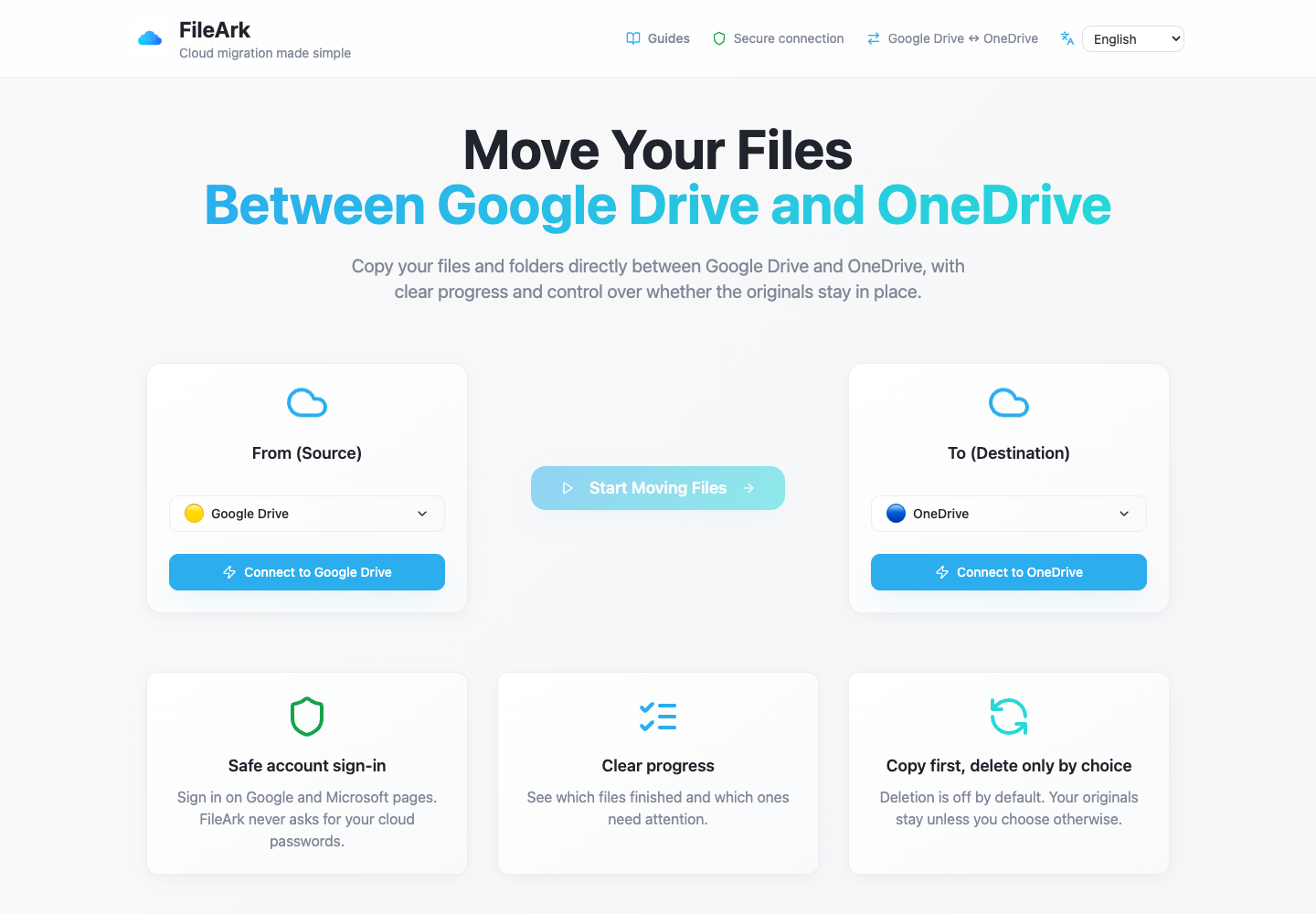
Under From, select Google Drive. Under To, select OneDrive. Check the direction again before authorization.
Connect the correct accounts
Authorize Google and Microsoft on their provider pages. Check the displayed account names so a personal and work account are not accidentally mixed.
Review quota before transfer work is released
The setup page displays live storage. The scanner then totals its discovered file metadata and compares it with a finite OneDrive remaining quota before queueing file jobs.
Use a clean destination folder
A uniquely named Migrated folder reduces collisions and makes the result easier to review or remove without disturbing existing OneDrive content.
Keep the Google source
Leave deletion disabled. A storage warning is not a reason to combine migration and permanent deletion into one irreversible step.
Start the online job
The scanner writes one record per file and publishes durable work. Workers process, verify, and update those records while you are free to close the browser.
How FileArk keeps a huge job from becoming one fragile request
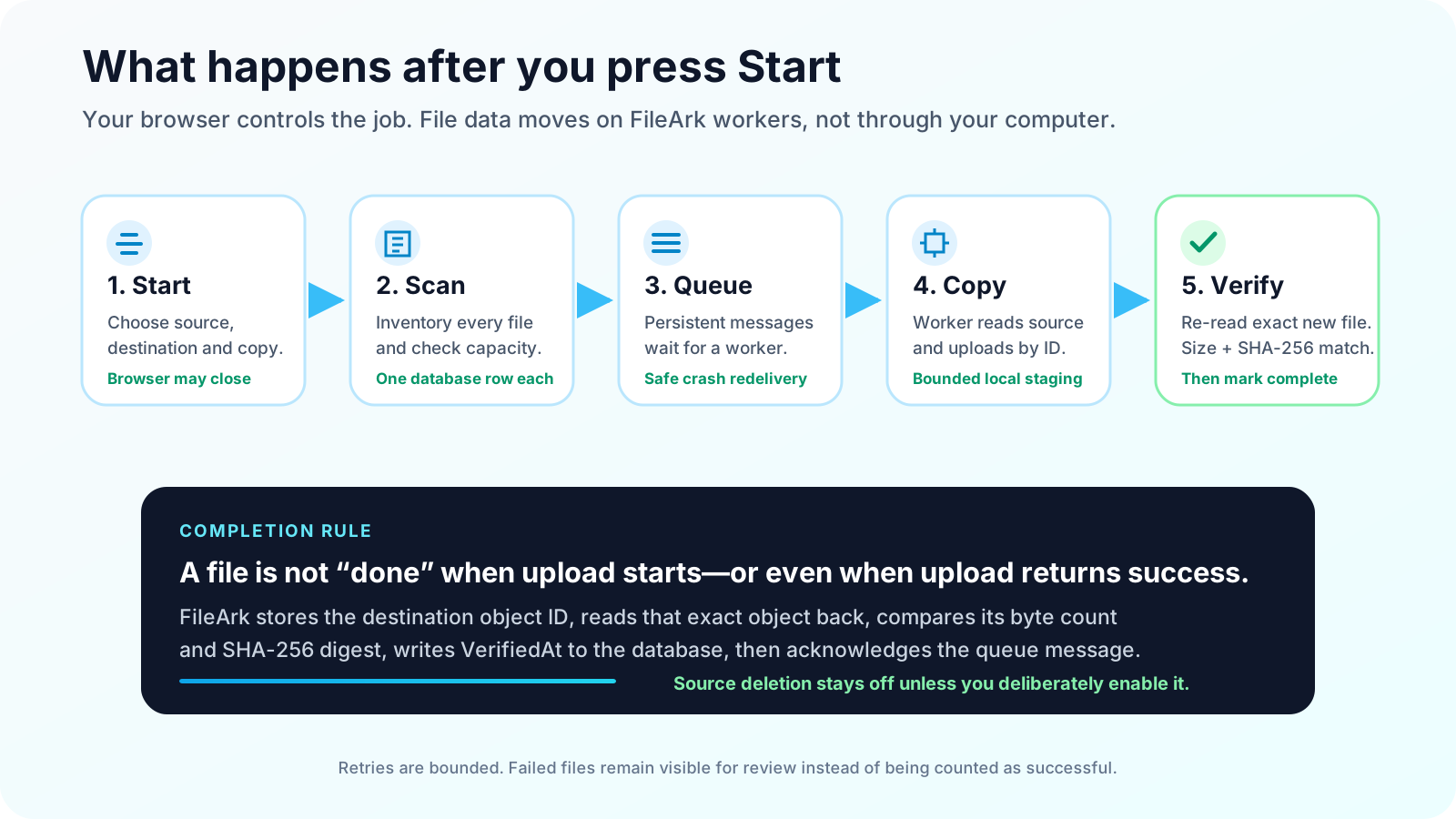
The initial scanner enumerates the Google Drive hierarchy and creates or reuses an idempotent database record for every source object. Each pending record is published as a persistent message to a durable migration queue.
A worker requests one delivery at a time. It does not acknowledge that message at pickup. The acknowledgement comes only after the destination result and the database record are safely written. If the process crashes first, RabbitMQ can deliver the unacknowledged work again.
Repeated delivery is expected in an at-least-once system. FileArk recognizes an already verified record and skips it. For interrupted work it uses the stored or recovered destination ID to avoid treating uncertainty as a brand-new success.
The checks that turn a green upload into a verified file
Read and fingerprint the source payload
FileArk reads the transferable payload and computes SHA-256 over the exact bytes. For a Google-native item, this is the exported representation that OneDrive will receive.
Upload and retain destination identity
OneDrive returns an object ID. FileArk stores it on the file record so later checks address the exact object, not merely another file with the same name.
Confirm visible size
The destination must report the expected byte count. Metadata is retried briefly because a new object can take time to appear consistently.
Read the destination back
FileArk downloads the exact OneDrive object by ID, computes SHA-256 again, and compares it with the source payload digest.
Persist completion, then acknowledge
Only an exact match receives Uploaded, a verification method, and VerifiedAt. The queue message is acknowledged after the database update.
What you should expect to review
Not every warning means lost data. A provider may temporarily throttle requests, a token may require refresh, or a destination object may take a moment to become readable. FileArk retries transient failures within a bounded number of attempts.
Persistent problems—permission changes, an unsupported export, a path conflict, insufficient destination capacity, or a verification mismatch—remain visible as failed work. They are not added to the completed count simply because an upload request was attempted.
For very large storage, review the failed list as part of the migration, not as an optional footnote. Resolve and retry those items while the source account still exists.
A low-stress finish for a high-volume move
- Let the run finish before reorganizing the destination.
- Investigate every failed item and preserve the source throughout retries.
- Open a representative set of Google-native exports, large media, archives, old files, and unusual names.
- Compare folder-level counts where possible instead of relying only on provider-wide storage totals.
- Test OneDrive access from the devices and accounts that will use it.
- Recreate required sharing and collaboration separately.
- Wait through an overlap period before canceling storage or deleting from Google Drive.
Frequently asked questions
Can I move Google Drive to OneDrive without downloading it to my laptop?
Yes. FileArk runs scanning and file transfer on online services. Your laptop is used to authorize and monitor the job, not to hold the whole library.
What happens to Google Docs and Sheets?
Google-native files need export into portable files before OneDrive can store their content. Review converted documents because collaboration history and native behavior do not transfer as ordinary bytes.
How does FileArk know a OneDrive upload is correct?
It records the OneDrive object ID, checks its size, reads that exact object back, computes SHA-256, and compares the digest with the source payload before marking the file verified.
Will closing the browser stop the migration?
No, once the work has been accepted and queued. The scanner, queue, database, and workers operate independently of the browser tab.
Should I delete Google Drive immediately after the move?
No. Keep the source through an overlap period, inspect important files and converted documents, resolve failures, and recreate sharing before making a separate deletion decision.