Google Drive → OneDrive · Print-friendly safety checklist
Google Drive to OneDrive Checklist for a Safe Move in 2026
A careful move protects the originals, makes converted Google files easy to find, and gives you time to check the result before people change the way they work.
Updated ; 7 minute read.
Short answer
Use four simple stages: review Google Drive, prepare enough space in OneDrive, copy with deletion off, and inspect the result. FileArk handles the background transfer and file checks; you make the final decision about the originals.
Before the transfer
- Confirm the Google account and Microsoft account email addresses.
- List important Google Docs, Sheets, and Slides that need to be checked after conversion.
- Review Shared with me items and note files owned by other people.
- Remove obvious duplicates and files you no longer need.
- Keep a separate backup of anything that cannot be replaced.
Check the OneDrive destination
FileArk shows the used and available space in both accounts. OneDrive needs more free space than the amount being copied from Google Drive.
Do not assume a Microsoft 365 plan has unlimited storage. Leave extra room for normal growth and for converted Google files.
Use safe settings for the first run
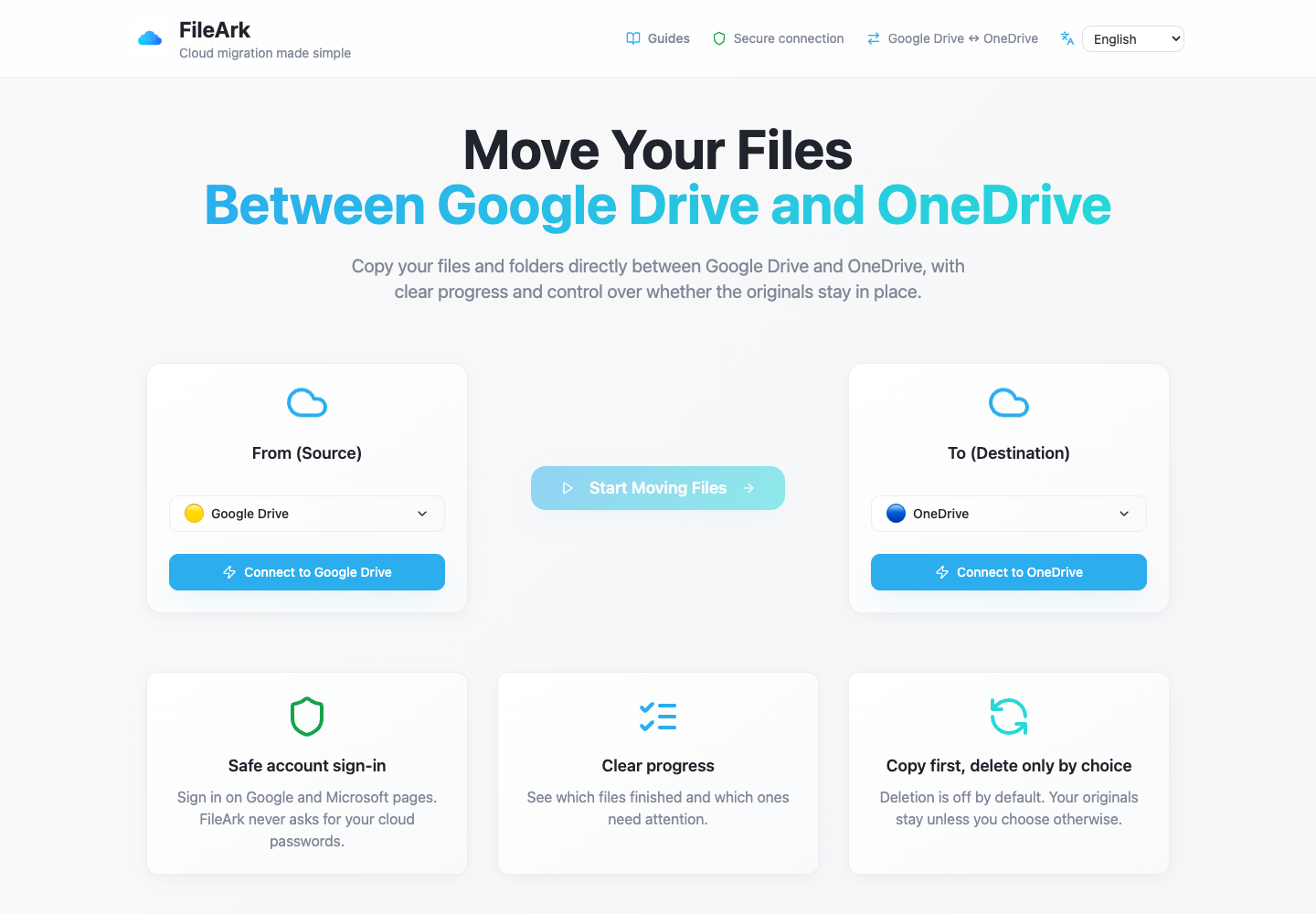
- Choose Google Drive under From and OneDrive under To.
- Keep the default Migrated folder so the new copy is easy to find.
- Leave “Delete files from source” unchecked.
- Start the copy and let it continue in the background.
- Return to the progress page and review any failed items.
How FileArk checks every transferred file
A progress bar alone is not enough. FileArk checks each file at three separate points so that a stopped or incomplete upload is not quietly counted as finished.
- First check: FileArk reads the complete file from Google Drive and records the amount of data it received.
- Second check: OneDrive must confirm that it accepted the upload.
- Third check: FileArk finds the new file in OneDrive and compares its size with the file it sent.
Your manual review
- Open converted Google Docs, Sheets, Slides, and Drawings.
- Open files from both simple and deeply nested folders.
- Play large videos and open ZIP files.
- Check files with long names or names in other languages.
- Share an important folder again from OneDrive and test access.
Copy first. Decide about deletion later.
The safest first transfer is a copy. The “Delete files from source” box is off by default, so the originals stay in Google Drive while you inspect the new copy in OneDrive.
After FileArk finishes, compare important folders and open files yourself. If you are satisfied, you can delete the Google Drive originals yourself. If you use FileArk’s automatic deletion option on a later transfer, FileArk removes an original only after the destination checks pass.
Keep a short overlap period
Do not close the Google account or reduce its storage plan on the same day the copy finishes. Use OneDrive normally for a while and listen for anything people cannot find or open.
When the important files work, sharing has been rebuilt, and you are comfortable with the copy, you can decide what should remain in Google Drive.
Frequently asked questions
Why should I keep Google Drive after the copy?
A short overlap gives you time to find a missing sharing setting, check converted documents, and recover anything unexpected without pressure.
Does FileArk check free space before starting?
Yes. It shows storage information for both connected accounts and prevents the transfer from starting when the destination does not have enough room.
Is automatic checking enough?
No automatic system knows which files matter most to you. FileArk checks the transfer, and you should also open a useful selection of destination files before deleting originals.