Google Drive → OneDrive · For large accounts and slow connections
Move Google Drive to OneDrive Without Downloading Everything
Google Takeout can create an archive, but an archive is not the same as an organized OneDrive with checked files and familiar folders.
Updated ; 8 minute read.
Short answer
FileArk moves files from Google Drive to OneDrive online. Your browser starts the job and shows progress, but the files do not pass through your computer. FileArk also handles the standard conversion needed for Google Docs, Sheets, Slides, and Drawings.
Why an archive download may not solve the problem
Google Takeout is useful when you want a downloadable backup. For a large account, however, it can create many archive files. You still need enough disk space to download and open them, then enough time and internet capacity to upload everything to OneDrive.
A direct background transfer is easier when your real goal is a usable OneDrive copy. FileArk rebuilds the folder paths and tracks each file instead of giving you a group of archives to sort out.
What happens after you press Start
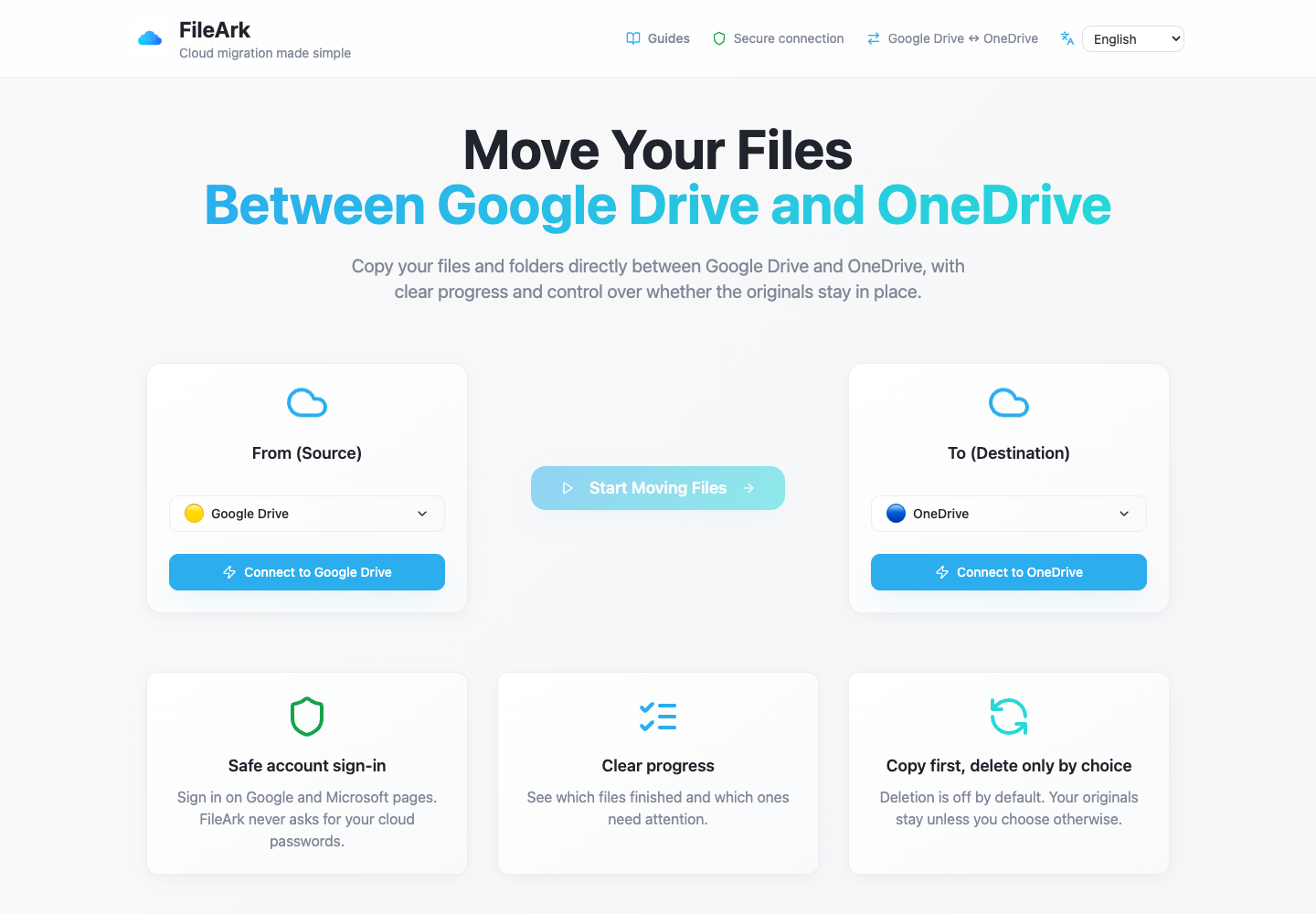
FileArk scans Google Drive, creates the matching folders in OneDrive, and sends each file online. Your computer can sleep or disconnect because it is not the bridge between the two services.
The progress page shows completed and failed items. If one file needs another try, the files that already finished do not need to be copied again.
Remember Google’s own file types
- Google Docs become PDF files.
- Google Sheets become XLSX files.
- Google Slides become PDF files.
- Google Drawings become PNG images.
- Open an important sample in OneDrive to make sure the result suits your needs.
Prepare the accounts
- Check that you selected the intended Google account.
- Check that OneDrive has enough free space.
- Review files under Shared with me because another person may own them.
- Keep both accounts active until the result is checked.
- Leave source deletion off for the first copy.
How FileArk checks every transferred file
A progress bar alone is not enough. FileArk checks each file at three separate points so that a stopped or incomplete upload is not quietly counted as finished.
- First check: FileArk reads the complete file from Google Drive and records the amount of data it received.
- Second check: OneDrive must confirm that it accepted the upload.
- Third check: FileArk finds the new file in OneDrive and compares its size with the file it sent.
Copy first. Decide about deletion later.
The safest first transfer is a copy. The “Delete files from source” box is off by default, so the originals stay in Google Drive while you inspect the new copy in OneDrive.
After FileArk finishes, compare important folders and open files yourself. If you are satisfied, you can delete the Google Drive originals yourself. If you use FileArk’s automatic deletion option on a later transfer, FileArk removes an original only after the destination checks pass.
Frequently asked questions
Does the transfer use my computer’s disk space?
No. Your device opens FileArk and shows progress, but it does not need to store the whole Google Drive account.
Will Google Docs stay as Google Docs in OneDrive?
No. OneDrive cannot store them as live Google Docs. FileArk converts them to normal files that OneDrive can keep. Review important documents after conversion.
Can I use my computer while FileArk is moving files?
Yes. The transfer runs in the background and does not use your device as the path for the files.