OneDrive → Google Drive · For large accounts and slow connections
Move OneDrive to Google Drive Without Downloading Everything
If OneDrive is larger than your laptop, downloading and uploading everything is not just inconvenient. It may be impossible.
Updated ; 8 minute read.
Short answer
FileArk moves files from OneDrive to Google Drive online. Your browser starts the job and shows progress, but the files do not pass through your computer. That saves local disk space and avoids using your home or office connection for hundreds of gigabytes.
Why downloading everything becomes a problem
A manual move sends every file through your connection twice: once down from OneDrive and once up to Google Drive. Moving 500 GB can therefore use about 1 TB of internet traffic before retries.
Your computer also needs room for the downloaded files. Large folder downloads may arrive as several compressed files, which need even more space when opened. If the browser stops halfway, it can be hard to know what is missing.
What a background transfer means
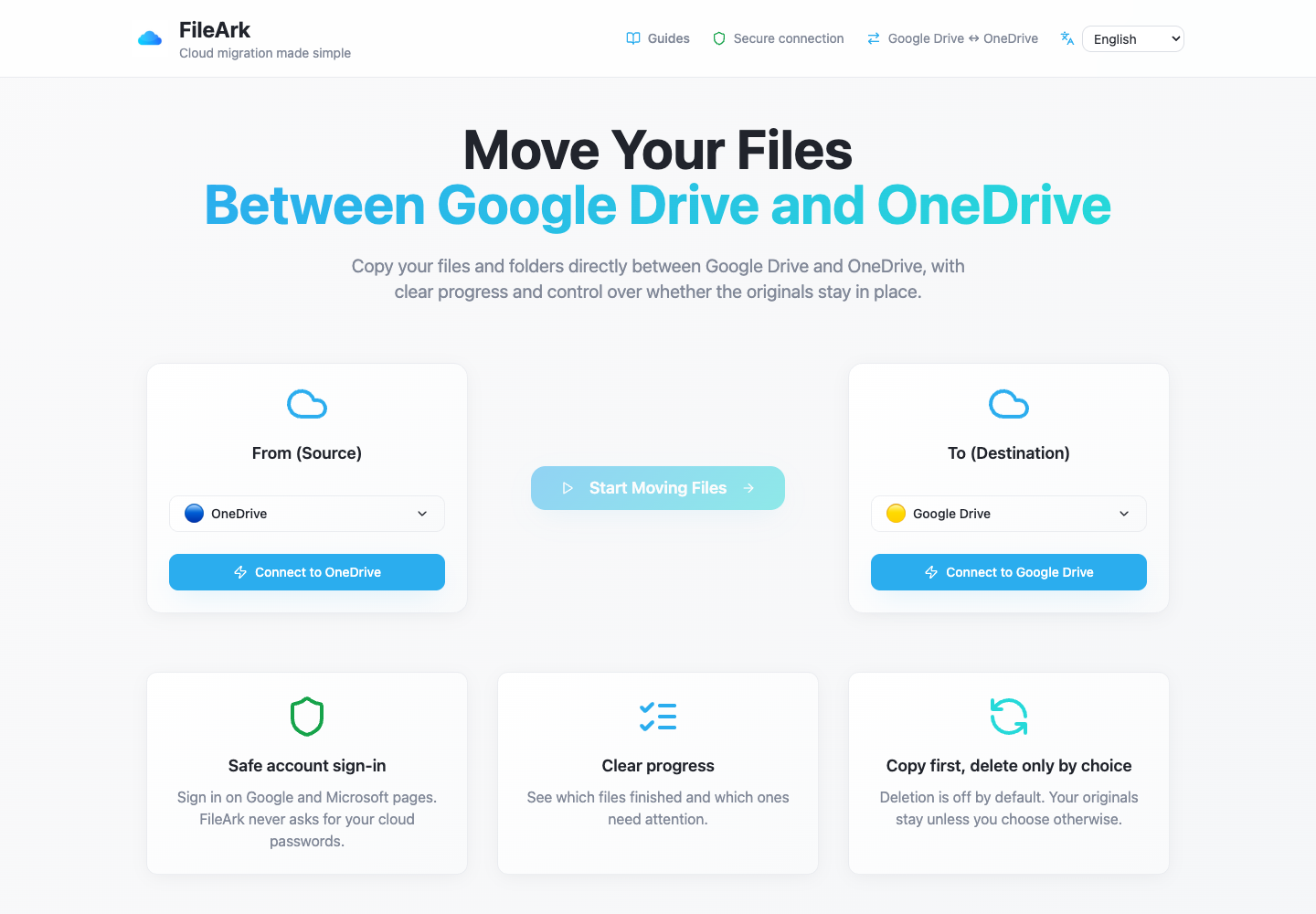
You connect the two accounts and start the transfer in FileArk. From that point, FileArk reads the files from OneDrive and sends them to Google Drive online. Your laptop or phone can disconnect without carrying the file data.
You can return later to see how many files were found, how many finished, and which ones need another try. Completed files do not need to start again because one item failed.
What to check before a large transfer
- Make sure you connected the correct Microsoft and Google accounts.
- Check that Google Drive has enough free space for the OneDrive account.
- Remove old downloads or duplicates you already know you do not need.
- Keep both storage plans active until the copy has been reviewed.
- Start with source deletion off.
Why some transfers take longer than others
The total size matters, but the number of files matters too. Fifty thousand small files may take longer than a few large videos because every file must be found, created, and checked separately.
Google or Microsoft may also slow repeated requests for a while. FileArk records the progress so a temporary problem can be retried without throwing away work that already finished.
How FileArk checks every transferred file
A progress bar alone is not enough. FileArk checks each file at three separate points so that a stopped or incomplete upload is not quietly counted as finished.
- First check: FileArk reads the complete file from OneDrive and records the amount of data it received.
- Second check: Google Drive must confirm that it accepted the upload.
- Third check: FileArk finds the new file in Google Drive and compares its size with the file it sent.
Copy first. Decide about deletion later.
The safest first transfer is a copy. The “Delete files from source” box is off by default, so the originals stay in OneDrive while you inspect the new copy in Google Drive.
After FileArk finishes, compare important folders and open files yourself. If you are satisfied, you can delete the OneDrive originals yourself. If you use FileArk’s automatic deletion option on a later transfer, FileArk removes an original only after the destination checks pass.
Frequently asked questions
Does this use my home internet data?
Your device uses a small amount of data to open FileArk and view progress. The file contents themselves move online between FileArk and the storage services, not through your device.
Can FileArk move hundreds of gigabytes?
Yes, as long as Google Drive has enough free space and both accounts remain connected. A large number of files can take time, so use the progress page instead of expecting a fixed finish time.
What happens if one file fails?
The failed item is recorded so it can be reviewed or tried again. Files that already finished remain completed.