OneDrive full · No computer space · For the “everything is full” moment
OneDrive Is Full and Your Computer Has No Space: What Can You Do?
OneDrive is warning you that storage is full. Your laptop is nearly full too. Downloading hundreds of gigabytes is not a realistic escape plan—and you should not have to become a migration engineer to protect your files.
Updated ; 13 minute read.
Short answer
You can copy OneDrive directly to Google Drive without storing the library on your computer. With FileArk, your browser starts the job, FileArk scans the account and checks destination capacity, and online workers transfer and verify each file. Keep source deletion off so OneDrive remains your safety copy while you inspect Google Drive.
The trap: both OneDrive and the computer are full
This usually arrives as a chain of small problems. OneDrive stops syncing new photos. Windows asks you to free space. A family video archive, old work folders, phone backups, and years of documents are mixed together. You want to move them, but the obvious method says to download everything first—and there is nowhere to put it.
Even if an external drive is available, a manual move turns your computer into the transfer server. Every byte has to download, occupy local storage, and upload again. The computer must stay awake, the network must remain stable, and you must work out which folders completed after any interruption.
For a few folders, that may be acceptable. For hundreds of gigabytes or a one-terabyte account, it becomes a long-running data operation. The risky part is not clicking Download. It is proving, days later, that the destination contains the complete and correct copy.
A cloud-to-cloud move does not need your laptop to hold the library

In a FileArk migration, your browser is the control panel rather than the data pipe. It records the direction, connects the authorized accounts, shows storage information, and lets you follow progress. The file payloads are read and written by online migration workers.
That means closing the tab does not cancel a properly queued job, and your home upload speed does not determine how quickly hundreds of gigabytes can leave OneDrive. The worker environment—not your laptop—provides bounded temporary space for large individual files.
FileArk checks worker temporary capacity before staging a large object. Smaller objects are handled in memory, while larger ones use a temporary worker file that is removed after the item finishes. A worker without enough reserve fails the attempt instead of filling its disk and pretending the file completed.
Before you move: make the destination boring and predictable
- Confirm that Google Drive is the account you intend to keep using.
- Make sure Google Drive has more free space than the files selected from OneDrive. FileArk repeats this capacity check after the scan.
- Pause major reorganizing and renaming in OneDrive while the inventory is being built.
- Leave “Delete files from source” off for the first run.
- Use a new Migrated folder so transferred content does not mix with unrelated destination files.
- Keep both subscriptions active through a review period; do not plan cancellation for the same day as the move.
Move OneDrive to Google Drive without filling the computer
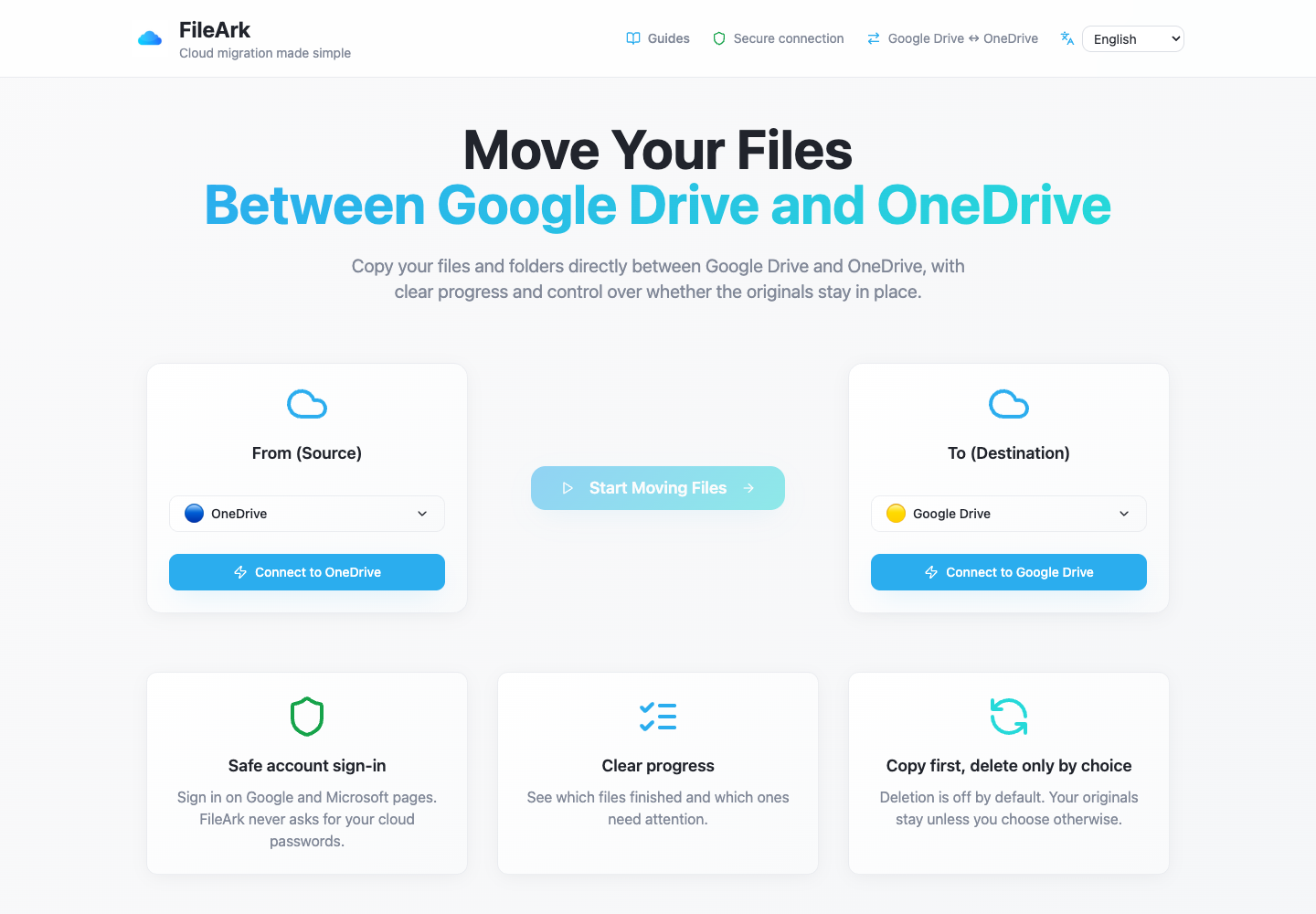
Set OneDrive as From
Choose OneDrive as the source and Google Drive as the destination. The direction matters: FileArk reads from the first account and writes only to the second.
Authorize both providers
Complete Microsoft and Google authorization on their own sign-in screens. FileArk uses the resulting access grants; it does not need your provider passwords.
Review live storage
Check OneDrive used storage and Google Drive remaining storage. If the scanned file total exceeds a finite destination quota, the scanner fails before publishing file-transfer work.
Choose copy, not deletion
Keep source deletion disabled. This preserves OneDrive as the fallback while the large copy runs and while you review the result.
Start once and monitor
The scanner creates the inventory and queues one durable work item per file. You can return to the progress page later; the computer is no longer carrying the data.
What happens if something disconnects halfway through?
Cloud APIs throttle, tokens expire, networks reset, and processes restart. A trustworthy migration must expect those events. FileArk uses durable queues and persistent messages, and a worker acknowledges a file only after processing and state persistence finish.
If a worker stops before acknowledgement, the queue can redeliver the item. The database record makes the operation idempotent: a fully verified file is skipped, while an interrupted upload can be recovered by its destination identity and rechecked. Transient attempts are bounded; an item that still fails remains visible as Failed instead of disappearing into an endless retry loop.
This is deliberately different from a browser download where the only evidence may be an incomplete ZIP. The scan record, per-file rows, attempt count, destination ID, verification result, and timestamps create an audit trail that survives the browser session.
“Uploaded” is not the same as “arrived correctly”
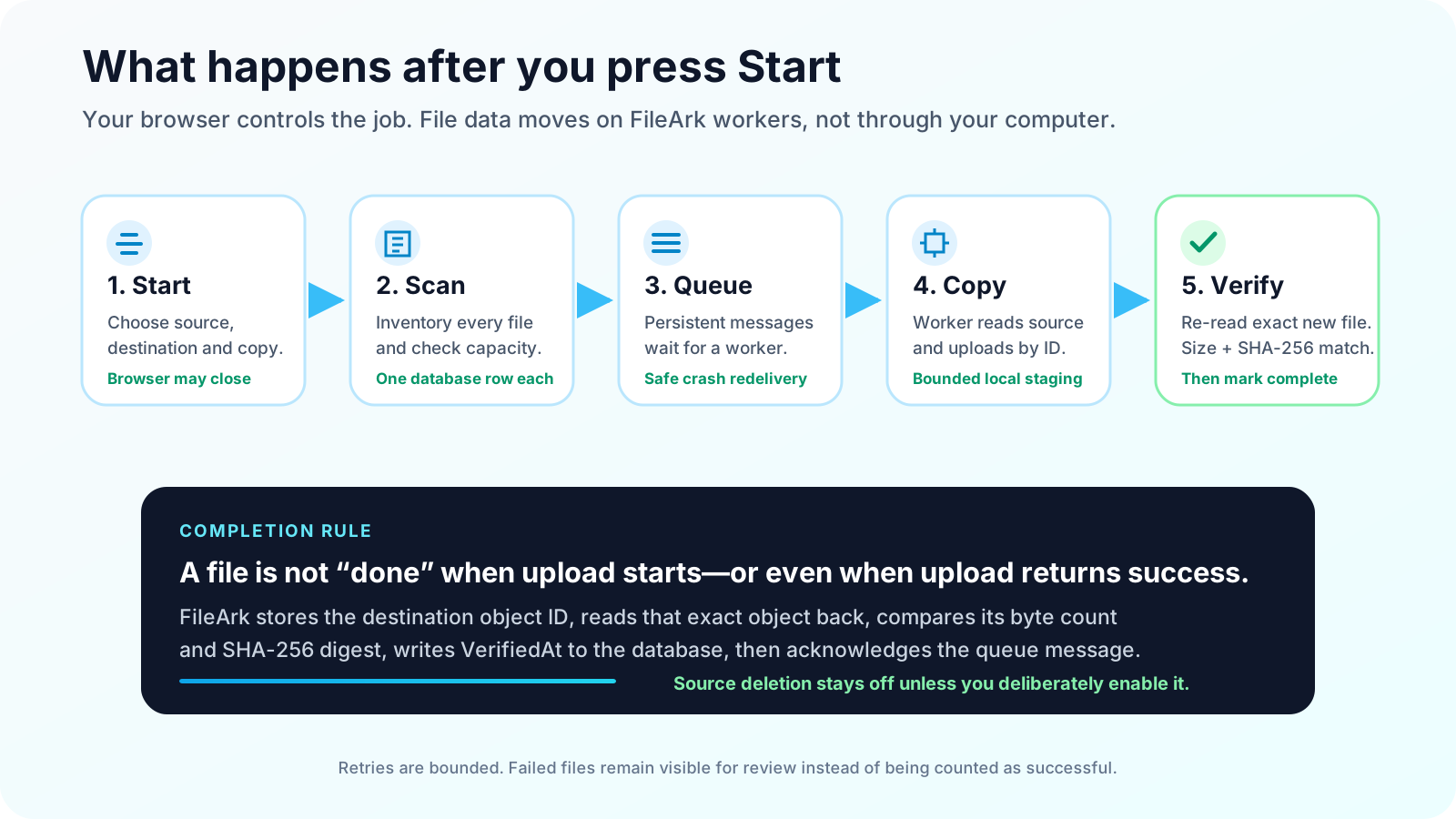
For each file, the worker computes SHA-256 over the exact source payload it will upload. This matters for Google-native formats and other cases where the transferable representation may differ from provider metadata.
After upload, FileArk stores the new destination object ID. It checks the destination size, reads that exact object back by ID, computes another SHA-256 digest, and compares the two values. Only then does it set the file to Uploaded with a VerifiedAt timestamp and acknowledge its queue message.
The database row is not erased after success. It remains the progress and verification record. If byte count or digest does not match, the source is retained and the item is retried or shown as failed.
What to check after a very large OneDrive copy
- Confirm there are no failed items, or investigate every failure individually.
- Compare expected folders and totals, remembering that service-wide storage numbers can include content outside the moved scope.
- Open old and new documents, large videos, archives, photos, Unicode filenames, and deeply nested folders.
- Check files that matter emotionally or financially instead of sampling only easy recent folders.
- Recreate sharing links and permissions where needed; those are service-specific and are not the same as file content.
- Keep OneDrive unchanged for an overlap period before making a separate deletion or subscription decision.
Frequently asked questions
Do I need enough computer space for my whole OneDrive?
No. FileArk’s online workers carry the file payloads. Your browser starts and monitors the job, so your computer does not need to store the library.
Can I close my laptop after starting?
Yes, after the job has been accepted and queued. The online scanner and workers continue independently. Return later to review progress and failures.
What if one file is larger than the worker’s free disk?
The worker checks temporary free space plus a reserve before staging a large file. An insufficient worker fails the attempt safely; it does not mark the file verified.
Will my OneDrive originals be deleted?
Not when source deletion is off, which is the recommended first-run setting. Even when deliberately enabled, deletion occurs only after destination size and SHA-256 verification.
Does FileArk move OneDrive sharing links?
No. File content and folder paths can be copied, but Microsoft sharing links, permissions, comments, and version history need separate review in Google Drive.