OneDrive → Google Drive · Print-friendly safety checklist
OneDrive to Google Drive Checklist for a Safe Move in 2026
A good move is not just pressing Start. It is knowing what you have, keeping the originals safe, and checking the result before changing anything.
Updated ; 7 minute read.
Short answer
Use four simple stages: check the OneDrive account, prepare enough space in Google Drive, copy with deletion off, and inspect the result. FileArk handles the background transfer and file checks; you make the final decision about the originals.
Before the transfer
- Confirm the email address of the OneDrive account you want to copy.
- Confirm the email address of the Google Drive account that should receive it.
- Look through Shared with me items; files owned by other people may need separate attention.
- Remove obvious duplicates and files you no longer need.
- Keep a separate backup of anything that cannot be replaced.
Check storage in both accounts
FileArk shows the used and available space for OneDrive and Google Drive. The Google destination needs more free space than the amount being copied.
Google storage may also be used by Gmail and Google Photos. Leave extra room instead of planning to fill the account completely.
Use safe settings for the first run
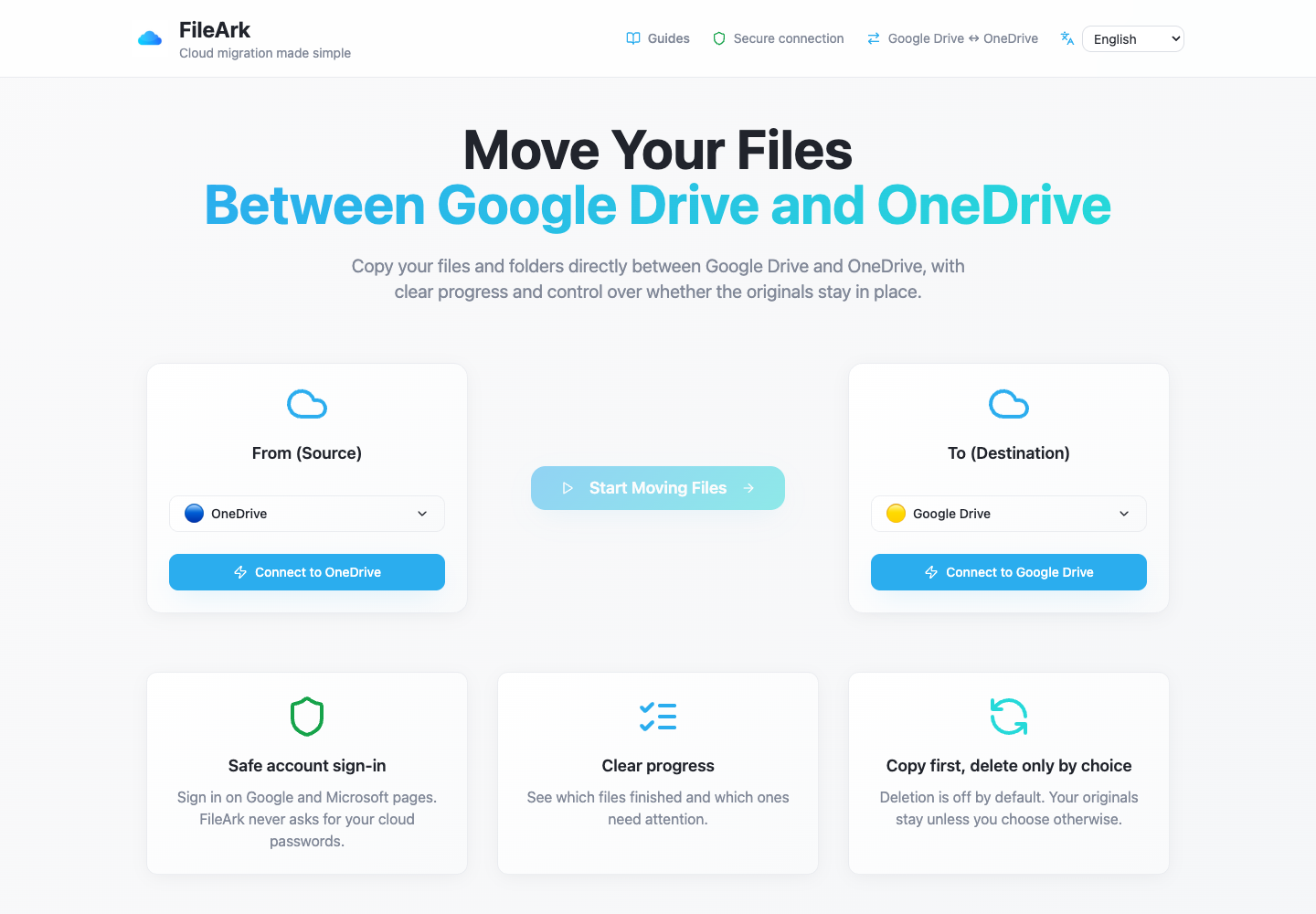
- Choose OneDrive under From and Google Drive under To.
- Keep the default Migrated folder so the new copy is easy to find.
- Leave “Delete files from source” unchecked.
- Start the copy and let it continue in the background.
- Return to the progress page and review any failed items.
How FileArk checks every transferred file
A progress bar alone is not enough. FileArk checks each file at three separate points so that a stopped or incomplete upload is not quietly counted as finished.
- First check: FileArk reads the complete file from OneDrive and records the amount of data it received.
- Second check: Google Drive must confirm that it accepted the upload.
- Third check: FileArk finds the new file in Google Drive and compares its size with the file it sent.
Your manual review
- Open documents from the top level and from deeply nested folders.
- Play several large videos from the destination.
- Open ZIP files and files with long or non-English names.
- Ask another person to check an important shared work folder.
- Write down anything that must be shared again in Google Drive.
Copy first. Decide about deletion later.
The safest first transfer is a copy. The “Delete files from source” box is off by default, so the originals stay in OneDrive while you inspect the new copy in Google Drive.
After FileArk finishes, compare important folders and open files yourself. If you are satisfied, you can delete the OneDrive originals yourself. If you use FileArk’s automatic deletion option on a later transfer, FileArk removes an original only after the destination checks pass.
Frequently asked questions
Why can the storage totals look different after the copy?
Google and Microsoft count some files, old versions, trash, and shared content differently. Use FileArk’s file results together with your own checks instead of comparing only one total number.
When is it safe to delete OneDrive files?
Only after FileArk has finished, failed items are resolved, and you have opened a useful selection of files in Google Drive yourself. Keeping an extra backup is wise for irreplaceable files.
Should I cancel OneDrive as soon as the copy finishes?
No. Keep a short overlap period so you have time to find missing sharing settings, open important files, and correct any surprises.