Google Drive → OneDrive · Simple step-by-step guide
How to Transfer Google Drive to OneDrive in 2026 (Step by Step)
Moving to Microsoft 365 should not mean rebuilding every folder by hand or leaving a computer uploading files for days.
Updated ; 9 minute read.
Short answer
With FileArk, choose Google Drive as the source and OneDrive as the destination, sign in to both accounts, check the available space, and start the copy. The transfer continues online in the background and does not use your home or office internet connection to carry the files.
Why people move from Google Drive to OneDrive
You may be starting a Microsoft 365 plan, joining a company that uses OneDrive, combining accounts, or keeping family files in one place. The goal is simple: bring the folders and files across without losing track of them.
A full Google Drive can contain thousands of ordinary files as well as Google Docs, Sheets, and Slides. Downloading everything by hand can fill a computer, use a great deal of internet traffic, and leave you unsure about what finished.
What happens to Google Docs, Sheets, and Slides
Google’s own document types need to become normal files before OneDrive can store them. FileArk turns Google Docs into PDF files, Google Sheets into XLSX files, Google Slides into PDF files, and Google Drawings into PNG images.
Open important converted files after the move. A PDF keeps the content easy to read, but it is not the same as an editable Google Doc. If you need a different editable format for business work, plan that separately.
How to transfer Google Drive to OneDrive with FileArk
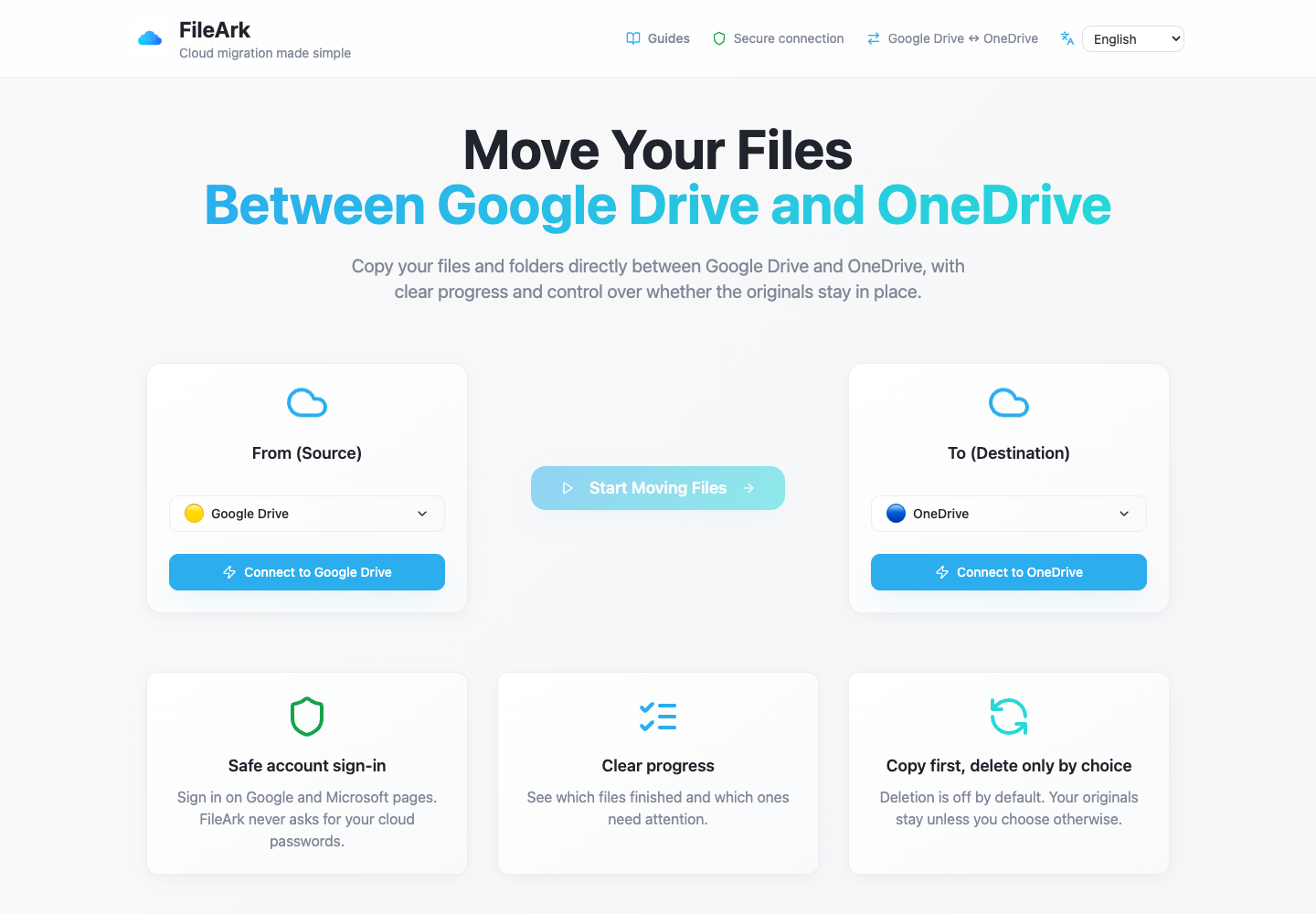
Choose the direction
Under From, choose Google Drive. Under To, choose OneDrive. This tells FileArk which account to copy from and which account should receive the files.
Connect your accounts
Use the Google and Microsoft sign-in pages. You sign in directly with those companies; FileArk never asks you to type your Google or Microsoft password into FileArk.
Check the space
FileArk shows the used and available space in both accounts. It compares the amount in Google Drive with the free space in OneDrive and stops you from starting when the destination is too small.
Choose where the files go
By default, FileArk places the copy inside a new Migrated folder. This keeps the transferred files together and avoids mixing them with files already in the root of OneDrive.
Keep deletion off for the first copy
Leave “Delete files from source” unchecked. Your Google Drive files stay in place while you review the OneDrive copy.
Start and come back later
FileArk scans the folders, transfers the files in the background, and shows what finished or failed. You may close the browser; your computer is not carrying the files.
How FileArk checks every transferred file
A progress bar alone is not enough. FileArk checks each file at three separate points so that a stopped or incomplete upload is not quietly counted as finished.
- First check: FileArk reads the complete file from Google Drive and records the amount of data it received.
- Second check: OneDrive must confirm that it accepted the upload.
- Third check: FileArk finds the new file in OneDrive and compares its size with the file it sent.
Copy first. Decide about deletion later.
The safest first transfer is a copy. The “Delete files from source” box is off by default, so the originals stay in Google Drive while you inspect the new copy in OneDrive.
After FileArk finishes, compare important folders and open files yourself. If you are satisfied, you can delete the Google Drive originals yourself. If you use FileArk’s automatic deletion option on a later transfer, FileArk removes an original only after the destination checks pass.
What needs a separate check
Sharing links, comments, old versions, and company rules do not automatically become matching OneDrive settings. The file content can move while the way people access it changes.
Look at important shared folders after the copy. Share them again from OneDrive and confirm that the right people can open them.
Frequently asked questions
Can I transfer Google Drive to OneDrive without downloading everything?
Yes. FileArk carries the files online in the background. They do not travel through your computer or use your internet connection for the file transfer.
Can I close my browser during the transfer?
Yes. After the transfer starts, it continues in the background. Return to FileArk later to see progress and any files that need attention.
Will FileArk delete my Google Drive files?
No, unless you deliberately turn on the deletion option. It is off by default. For the safest result, copy first, check the files yourself, and only then decide what to delete.