OneDrive → Google Drive · Simple step-by-step guide
How to Transfer OneDrive to Google Drive in 2026 (Step by Step)
Moving years of files should not mean downloading hundreds of folders, keeping a computer awake for days, and hoping every upload finished.
Updated ; 9 minute read.
Short answer
With FileArk, choose OneDrive as the source and Google Drive as the destination, sign in to both accounts, check the available space, and start the copy. The transfer continues online in the background and does not use your home or office internet connection to carry the files.
Why people move from OneDrive to Google Drive
You may be changing jobs, moving from Microsoft 365 to Google Workspace, combining personal accounts, or simply trying to keep everything in one place. The need is easy to understand: you want the same folders and files in Google Drive without losing anything along the way.
The difficult part is scale. A small folder can be downloaded and uploaded by hand. A full account may contain thousands of files, large videos, several folder levels, and names in different languages. A browser download can stop, a laptop can run out of space, and a slow upload can take days.
Three ways to move the files
- Download and upload by hand: good for a few small folders, but your computer needs enough disk space and a stable connection.
- Use both desktop sync apps: useful for a medium-sized account, but the computer must stay on and every file travels through your internet connection.
- Use FileArk: the files move online in the background, while your computer is used only to start the transfer and check progress.
How to transfer OneDrive to Google Drive with FileArk
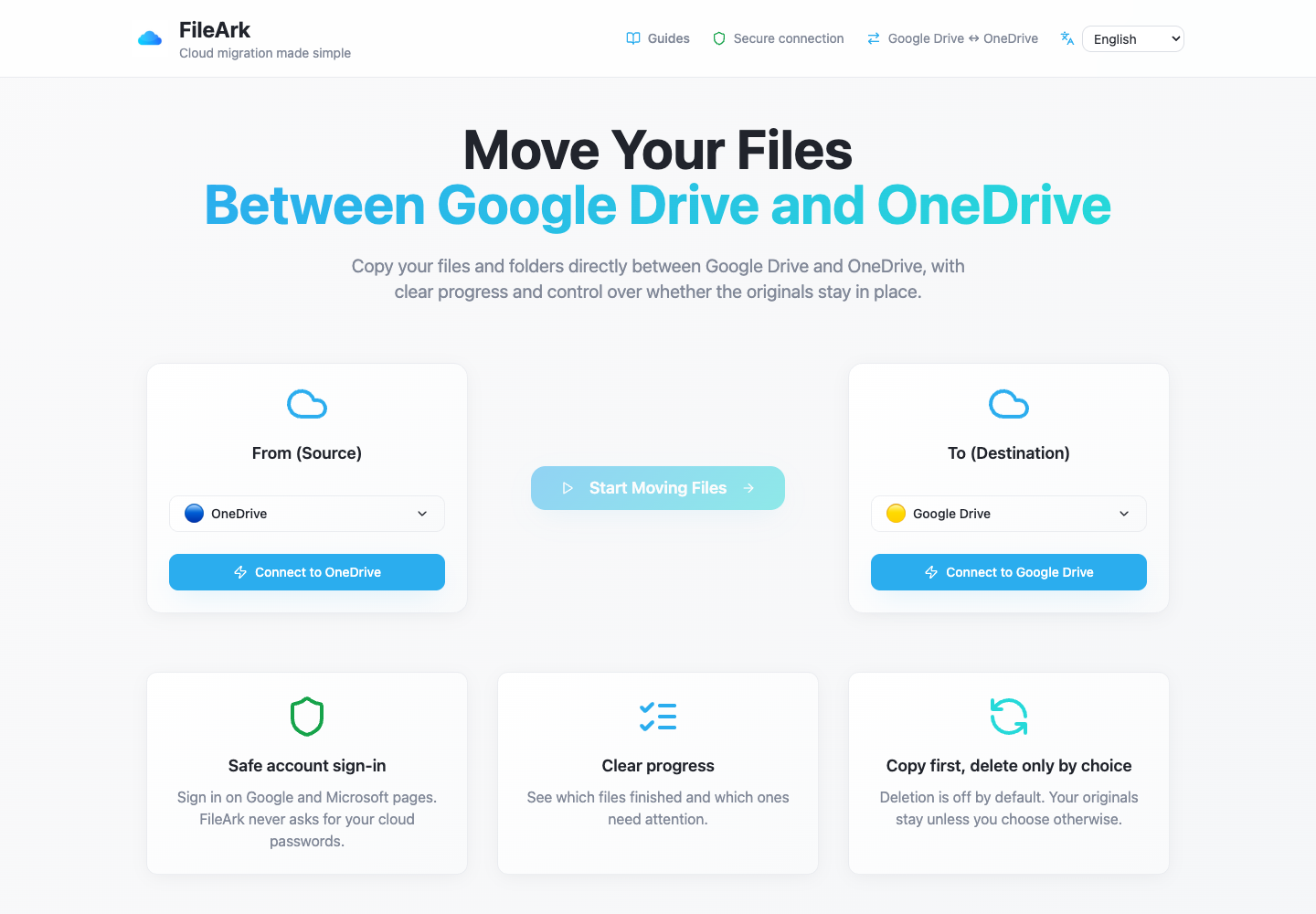
Choose the direction
Under From, choose OneDrive. Under To, choose Google Drive. This tells FileArk which account to copy from and which account should receive the files.
Connect your accounts
Use the Microsoft and Google sign-in pages. You sign in directly with those companies; FileArk never asks you to type your Google or Microsoft password into FileArk.
Check the space
FileArk shows the used and available space in both accounts. It compares the amount in OneDrive with the free space in Google Drive and stops you from starting when the destination is too small.
Choose where the files go
By default, FileArk places the copy inside a new Migrated folder. This keeps the transferred files together and avoids mixing them with files already in the root of Google Drive.
Keep deletion off for the first copy
Leave “Delete files from source” unchecked. Your OneDrive files stay in place while you review the Google Drive copy.
Start and come back later
FileArk scans the folders, transfers the files in the background, and shows what finished or failed. You may close the browser; your computer is not carrying the files.
How FileArk checks every transferred file
A progress bar alone is not enough. FileArk checks each file at three separate points so that a stopped or incomplete upload is not quietly counted as finished.
- First check: FileArk reads the complete file from OneDrive and records the amount of data it received.
- Second check: Google Drive must confirm that it accepted the upload.
- Third check: FileArk finds the new file in Google Drive and compares its size with the file it sent.
Copy first. Decide about deletion later.
The safest first transfer is a copy. The “Delete files from source” box is off by default, so the originals stay in OneDrive while you inspect the new copy in Google Drive.
After FileArk finishes, compare important folders and open files yourself. If you are satisfied, you can delete the OneDrive originals yourself. If you use FileArk’s automatic deletion option on a later transfer, FileArk removes an original only after the destination checks pass.
What may look different after the move
Normal files such as PDF, DOCX, XLSX, JPG, MP4, and ZIP stay in their normal formats. Folder names and folder levels are rebuilt in Google Drive.
Sharing links, comments, old versions, and company rules belong to the original service and may not move with the file. Check important shared folders separately and invite people again where needed.
A simple check before you leave OneDrive
- Compare the finished and failed file counts in FileArk.
- Open files from several large and small folders.
- Check photos, videos, archives, and files with non-English names.
- Open files that are important for work, tax, study, or family records.
- Keep OneDrive active until you are comfortable with the Google Drive copy.
Frequently asked questions
Can I transfer OneDrive to Google Drive without downloading everything?
Yes. FileArk carries the files online in the background. They do not travel through your computer or use your internet connection for the file transfer.
Can I close my browser during the transfer?
Yes. After the transfer starts, it continues in the background. Return to FileArk later to see progress and any files that need attention.
Will FileArk delete my OneDrive files?
No, unless you deliberately turn on the deletion option. It is off by default. For the safest result, copy first, check the files yourself, and only then decide what to delete.
Do OneDrive sharing links move to Google Drive?
Usually not. The files and folders can be copied, but sharing links and access rules are different in Google Drive and should be checked separately.